Powered by Blogger.
Showing posts with label Samsung S4. Show all posts

Saturday, 20 September 2014

, , , ,

Samsung Galaxy S3 and Galaxy S4 rumored to get Kit-Kat treatment, no time is given


Android 4.4 Kit-Kat and the new family member of the Nexus family Nexus has just become official few days back and everyone is waiting for the Android 4.4 Kit-Kat update for their Smartphones. After the release of the Android 4.4 Kit-Kat, the Smartphones manufacturer came into the race of updating their flagships to the latest Android Chocolate Bars. A few days back, a tweet revealed that Samsung testing the Android 4.4 Kit-Kat on the Galaxy Note 3 which makes clear that the Galaxy Note 3 will be the first Smartphone from Samsung to get the Android 4.4 update.

Galaxy S3 and Galaxy S4 Android 4.4 KitKat

Samsung has just released the Android 4.3 JellyBean for the Galaxy S3 and the Galaxy S4 but now we have some great news to share with you which came from the rumors that the Samsung Galaxy S3 and the Galaxy S4 will also get the Android 4.4 Kit-Kat treatment in the future but unfortunately no particular month or day is given in the rumors. Rumor also added that this update is going to be huge and will bring major changes to the system of the Samsung Galaxy S3 and the Galaxy S4. All of this information is just a rumor but it also makes a sense because the Korean OEM is doing very well on their update platform and these two devices will definitely get the Android 4.4 treatment but again we could stop here because as said by the Google that the devices that are more than 18 months older on the markets will not get the taste of Kit-Kat bars and the Samsung Galaxy S3 is now 18 months old, so here is a doubt on the Galaxy S3 Kit-Kat treatment.

We are looking to get some words on it by some official or reliable sources though this information has the ability to make the users of the Galaxy S3 and Galaxy S4 happier.

Please be noted that this information is not linked to any official or reliable sources, so don't take it too seriously.
by Triple A A-@-A
Publisher: Unknown - 12:41

Sunday, 14 September 2014

, , , , , , , , ,

How to Speed Up Android Smartphone (The Ultimate Guide) | AMANAHAD Tech


Android Smartphones has gained lot of popularity in recent years. Many people around the globe now owns an Android Smartphone. Everyday more and more Android Smartphones are poured into market. It is available from high end to low end smartphones But even with newer versions of Android OS , even with high end smartphones,one thing remains same, their user experiences sluggish phones in short amount of time. The Android development are still under construction. So you can either sit around hoping for a update or patch to solve lagging issues. In meantime, you can use your smartphone as paperweight or something like that till patch comes, but it is a long shot Or you can take matters into your own hand and fix the issues using steps given below.


1.Do It Daily!

  • Restart your phone daily once or twice. Yeah,it's sounds weird but restarting phone means all application process will restart too. It will remove any unnecessary process,clear clipboard and some other things which don't matter. All matters is you will have fast smartphone.
  • If your smartphone have high heating issues, keep it off for few minutes. When many processes are running same time,it increases the heat. You will experience lot of lagging under that condition. This method is not very effective but it helps.
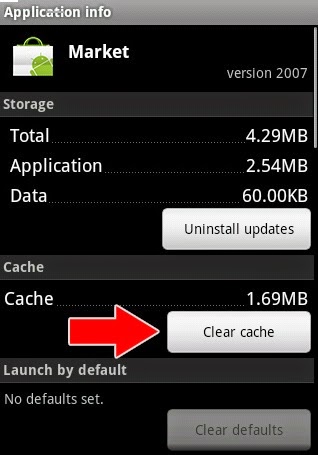
  • Clear App Cache: Clear the cache of application you using more than any other. Those apps will have more data cache than any other cache. App cache is data of particular app. You can remove it by Settings > Applications > [ Select your App ] > Clear Cache Note: Don't clear cache of any Game App. It could clear all your game progress and reset your account.

clear_app_cache
  • Check your Smartphone storage: Check your smartphone's internal storage space. Try to keep minimum 1 GB storage space free. Also check your external Storage space. If the SD card is full, remove some stuff or get new SD class with higher class.If your storage space is full, your smartphone will lag..a lot.        

2.Get Rid Of It

  • Uninstall any unused apps. Uninstalling the apps you don't use will free up some internal storage space and also removes extra processes of that app. If the app is bloatware [ what is bloatware? More info in next steps] , Disable it.
  • Remove all widgets. If you don't want to remove all widgets,try to limit widgets on your home screen. It depends on your smartphone how much widgets you can use without taking toll on it.But best option would be to delete all widgets.
  • Switch to static wallpapers. Using live wallpaper will slow down the smartphone and also it takes lot of battery power. So static wallpaper is better option than live wallpaper.
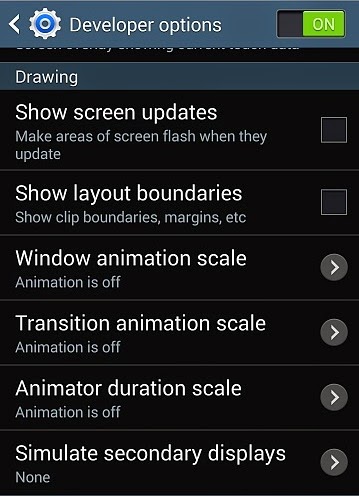
  • Disable all Animations. You can find its option under Settings > Developer's option.

disable_animation_android
  • Use stock app-launcher. Stock app-launcher is default launcher. Using any third-party app launcher with lot of animation is not good choice. If you still want to use third-party app launcher, just disable all animation. That will improve the performance.


 3.Apps to Avoid


  • Avoid any antivirus apps.
  • Avoid any battery saver apps. Usually these apps slow downs the phones and also eats precious batter power. There are other ways to save battery than those apps.
  • Carefully select any performance booster apps for your smartphone. Not all apps are suitable for your phone. Try different apps to find suitable app otherwise avoid it.
  • Avoid any third-party launcher. Any launcher with lot of effects and animation will require more resources which will ultimately reduce phone performance. So keep it simple or better avoid it.
I am not saying this types of apps are useless and doesn't work. It is just not every app is suitable for all different smartphones. Experiment with different app to find out which one is suitable for you. But it would be best not to use it.

4.Compatibility Issues

  • If you have powerful processor and high RAM in your smartphone,than avoid reading this topic.
  • Update your smartphone to latest Firmware. A new firmware version can improve the performance but remember newer is not always better.
  • If you have medium range smartphone[includes low range phones], think before updating to newer version of Android. If you are satisfied with running version of Android in your smartphone,than there is no need to update it.
  • Every newer version of Android will have more features than older version. It will use more resources than previous version and you will left out with a sluggish phone. 
  • Revert to stock Android version if possible. They are and would be the most suitable for your smartphone.
  • Update to newer version of apps.
  • Take a backup [more to that in next step] of app before updating it. So in case newer version of app is eating more resources or not compatible, you can switch back to older working version. 

5.Benefits of Rooted Phone

Rooting will give you master control over your phone. Sure it is little difficult , but it's worth it. There are various methods for rooting which you can find on net for your phone. There are different methods for rooting. Some of them requires unlocked Bootloader which will void your warranty. Read all steps of rooting process or take an expert advise before rooting your phone. It can brick your phones. A bricked phone is useless and hard to repair. The benefit of rooting is that you can always unroot your phone.So let's get started. 
  • Root your phone.You can find more about it on forum.xda-developers.com .They are the largest Android community on net.
  • You can overclock your phone processor for speed-up but it will eat more battery power.
  • Custom-ROM: They are the unofficial version of Android for your phone. Custom ROM gives many options to personalize the phone according to your will. Note that not all custom ROM s are good.Before installing any custom ROM, read all the instructions. Check all requirements. Also check for any existing bugs or any missing features. If you are okay with it than install it. Custom-ROM can increase your performance at wide scale.But again, not all are suitable for your smartphone
  • Can remove Bloatware on rooted phone.Bloatware are per-installed apps of your phone. Facebook,voice to text app ,voice dialer , google map are some of examples of bloatware. Bloatware apps are different for different phone. Not rooted phone can not uninstall it.With rooted phone,you can remove all bloatware, hence full control over phone.
  • Can install and use more advanced app. There are many good apps that requires rooted phone. Keep reading for some of examples of rooted apps.  

6.Uncategorized stuff

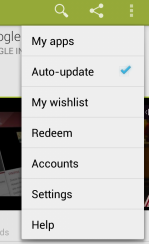
  • Turn-off auto-update of app. It will check again and again for available update.It will eat your internet, battery and also make your phone laggy. To turn it off go-to Playsore app > Menu from top left > My apps > select app . you can find tick-mark option there. 

disable_auto_update
  • Disable data synching of different social account like Facebook,Twitter. Also disable synching of  email,gmail etc. To disable it Just go to Settings > Accounts.It could be different for other Android version.
  • There is something you should check out if you are using Android version lower than 4.3. It is called Solid-State Drive TRIM.
  • Last option is - Reset your phone. Reseting the phone will clear everything from contacts to all apps. You will have than out-of-box phone.

7.Playstore

Here is a list of some app that can help you with phone lagging issues. You can download it from Google Playstore. Like I said earlier,try different apps to find suitable app for your phone.
  • App Cache Cleaner : Delete data cache of all apps at once.
  • Automatic Task Killer : An app to kill different task at once.
  • Clean Master : A free optimizer to clean junk files.
  • CCleaner : A powerful windows clean up tool now available for Android.Still in Beta phase.
  • AppMgr III : Move apps to SD card & Hide apps.A smart File Manager.
  • Watchdog : A task manager that monitor and kills process.Free and paid versions are available.
  • App Backup & Restore : Make a backup of any installed app as .apk and stores it to SD card.
  • Titanium Backup : An ultimate backup and restore app.Root Required.Free and paid version are available.
These steps will definitely fix all lagging issues. Your Android smartphone will run like a horse. Since your phone is working greatly again, you can install some popular awesome apps.
Publisher: Unknown - 15:12

Friday, 5 September 2014

,

Samsung Galaxy S 4 Tips & Tricks |AMANAHAD Tech


Discover everything you need to know to get started with your Samsung Galaxy S® 4 with these helpful tips and tricks. Learn how to Air Browse with hand gestures, utilize multiple windows at the same time, operate Samsung Hub and so much more.

Air Gestures

Wave your hand over the screen whenever you see the Air gesture indicator in the status bar to activate features such as:
• Quick glance: Get a peek at time, battery status, missed calls, and more when the screen is inactive. • Air scroll: Scroll to the top or bottom of a list. • Air browse: Move to the previous or next item of content. • Air move: Move an item to another page on the Home or menu screen. • Air call-accept: Accept an incoming call.

Camera Modes

The easy-to-use interface in the camera includes automatic modes that help you take the perfect picture every time. Choose from Auto, Beauty face, Best photo, Drama, Best face, Eraser, Panorama, Rich Tone HDR, Night, Sound and Shot, Animated Photo or Sports. In Carousel display mode, you can see descriptions of each mode so you can choose the right one.

Share with Group Play

You don’t even need to be on the same Wi-Fi network, because Group Play lets you create your own hotspot for spur-of-the-moment meet-ups.

Changing Home Screen Mode

Select the Home screen mode that best fits your personality. Basic mode displays the conventional layout for apps and widgets, while Easy mode provides a simplified Home screen experience for first-time smartphone owners.
• To change to Easy mode, touch Apps > Settings and touch the My device tab. • Touch Home screen mode and select Easy mode (Starter mode) > Apply. • The Home screen is reconfigured with a simple layout.

Using Multi Window

Activate Multi Window by touching and holding the Back key. From the tray, drag an app icon onto the screen to open it. To open a second app, drag it over the open app and drop it in the right or left side of the split-screen display. Resize the app windows by dragging the slider bar between them. Touch and hold the slider bar to see icons that let you switch the two screens or open one of the apps in full screen. While Multi Window is active, you can open the tray at any time by touching the blue tab on the side of the screen.

Out-of-Office

With the extended capabilities of SAFE devices, you can set your out-of-office message right from your device to let your colleagues know you are on vacation and offer alternative contact info.

Setting Up WatchON

Setting up WatchON is easy; you just need your ZIP code, the name of your television service provider, and the brand of your television set to start controlling your TV from your phone. Touch Apps > WatchON to get started.

Using Smart Gestures

In addition to the Air View and Air Gesture capabilities, you can also control the Galaxy S 4 through physical motions. For instance, lift the phone to your ear to dial the contact currently displayed on the screen, or cover the display with your hand to mute/pause any playing sounds. Enable Smart Gestures in Settings > Motions and gestures.

S Translator

Quickly translate typed or spoken phrases in nine languages, and hear the translations aloud. View a list of common phrases by category, such as greetings, business, emergencies, and transportation. Touch Apps > Translator.

Samsung Hub

Samsung Hub combines previous Samsung storefronts—such as Media Hub™, Music Hub™, Games Hub, and Readers Hub—into a single store with single sign-on through Samsung Account.
  1. Touch Apps > Samsung Hub.
  2. Touch Music, Video, Books, or Games to browse available titles or swipe right and left to view the main page for each type of content.
  3. Touch the Search icon to search for specific titles.
  4. When you see something you want to download, touch Buy (for paid items) or Download (for free items).
  5. Select Register credit card.
  6. Enter credit card credentials and touch Register.
  7. The credit card appears as a payment method. Touch the name of the credit card and then touch Pay.
  8. Touch Download.
  9. You can also pay with a gift card. At the payment page, select Gift cards and coupons and follow the prompts.
Publisher: Unknown - 21:33

Thursday, 4 September 2014

, , , , ,

How to Transfer Media from one Samsung Galaxy device to another Galaxy Device - Samsung Geeks AMANAHAD

One of our favourite things about the launch of the Galaxy S4 is the high quality support which Samsung has provided with it. Although this isn’t perfect [yet], Samsung are really moving in the right direction – trying to help consumers understand the technology they provide and simplify what might have been quite complicated processes. Along with the Galaxy S4 launch, they have provided “Samsung Smart Switch” Mobile which lets you quickly and easily transfer you data from one Samsung Galaxy Device to another.
Currently this will only work with devices such as the Galaxy Note 2, Galaxy S3 and Galaxy S4, which have NFC chips. Quite frankly – this software is awesome.

Tutorial

Samsung Smart Switch Mobile TutorialSamsung Smart Switch QR Code
Download Samsung Smart Switch onto both of your Galaxy Devices. You can find it by either scanning the QR code above, or following this link.

Step 2: 

Samsung Smart Switch Mobile Tutorial
Ensure that NFC is turned on on both Galaxy Devices and run the application.

How to Turn on NFC:

Turn on NFC by Navigating to “Settings”. On the Galaxy S3 and Note 2, you should be able to Find it by going to Settings > More Settings > NFC Toggle 
Samsung Smart Switch - NFC
One the Galaxy S4, you will be able to toggle NFC from the “Connections” tab in Settings:
Samsung Smart Switch - NFC

Step 3: Samsung Smart Switch Mobile Tutorial

Touch the back of the devices together. You should feel them vibrate and, if you have the sound on, a little “ding” to confirm that the device are in contact with each other. At this point, you’ll need to tap on the screen of either of the device to set up the WiFi Direct connection which will allow you to migrate your data. Leave the devices touching while it does this.
Samsung Smart Switch Tutorial

Step 4:

Samsung Smart Switch Tutorial
Select exactly what it is that you want to transfer. Samsung Smart Switch Mobile will allow you to transfer Contacts, Calendar, SNotes, Pictures, Music, Videos and Documents – so it’s pretty comprehensive. For music and video – it will only transfer files which are DRM Free. DRM (Digital Rights Management) is security software put into the music/video files which is supposed to stop piracy, though more often than not it just stops you being able to use content you have paid for on your own devices. Herumph.
Samsung Smart Switch Tutorial

Step 5:Samsung Smart Switch Mobile Tutorial

The final step is to press “Transfer” on the device where your content is and then press “OK” to confirm on the device you want to send the content to. Once this is done, sit back and let all the data transfer across from one Galaxy Device to Another. If you are transferring a lot of video files, music and images, this can take quite a long time – so go and put your feet up and check out some of the other cool features of the Galaxy S4 while you wait!
If you have any problem then leave comments I'll solve it.
by
AmanAhad
Publisher: Unknown - 01:12